A digital media library serves as a central repository for all the images, videos, logos, and design files your business uses. When managed effectively, it can save you hours of work each week. However, if it’s poorly organised, you risk losing access to crucial assets, like a key image just before a launch.
Most businesses fall into the second camp. Files live across desktops, shared drives, email threads and three different cloud services. The original photographer’s filename has been renamed twice. Nobody is sure which version is final. When someone needs the brand logo on a transparent background at print resolution, the search starts from scratch.
Why Bother Setting One Up?
Because the cost of disorganisation is hidden but real. The time spent hunting for files. Designers recreating assets that already exist. Stock images bought twice because nobody could find the first purchase. Worst case, an image gets used past its licence and the business cops a copyright claim.
A well-run media library does four things. It saves time. It protects your usage rights. It keeps quality consistent. It lets new team members find what they need without asking three people.
Setting one up takes a day or two of focused work. Maintaining it takes minutes a week, but the payoffs are well worth it.
How Do You Categorise and Label Files in a Media Library?
Start with a naming convention and stick to it. The goal is to be able to scan a filename and know what the file is, who it belongs to, and which version you’re looking at.
A reliable format for internally produced media is Client_Project_AssetType_Version. It tells you everything you need without opening the file. For larger libraries, add a date, for instance, Acme_Spring2026_HeroImage_2026-03-12.jpg.
For files received from external sources, do not rename the original. Keep the source filename intact so you can request the high-res version later or check provenance. Store the original in a source subfolder, and save your working copy in the main folder using your naming convention.
Folder structures should be shallow. One level of subfolder is almost always enough. Project-based folders (one folder per client or campaign) work for most businesses. Theme-based folders (people, products, locations) work better when the same assets get reused across many projects. Pick the one that matches how you actually search, not how you imagine you might.
Tag files with keywords where your storage system supports it. Good tags describe content, use and context. For a healthcare client that might be a doctor, consultation, waiting room, homepage, hero, and web. Tags are what save you when the filename isn’t quite enough.
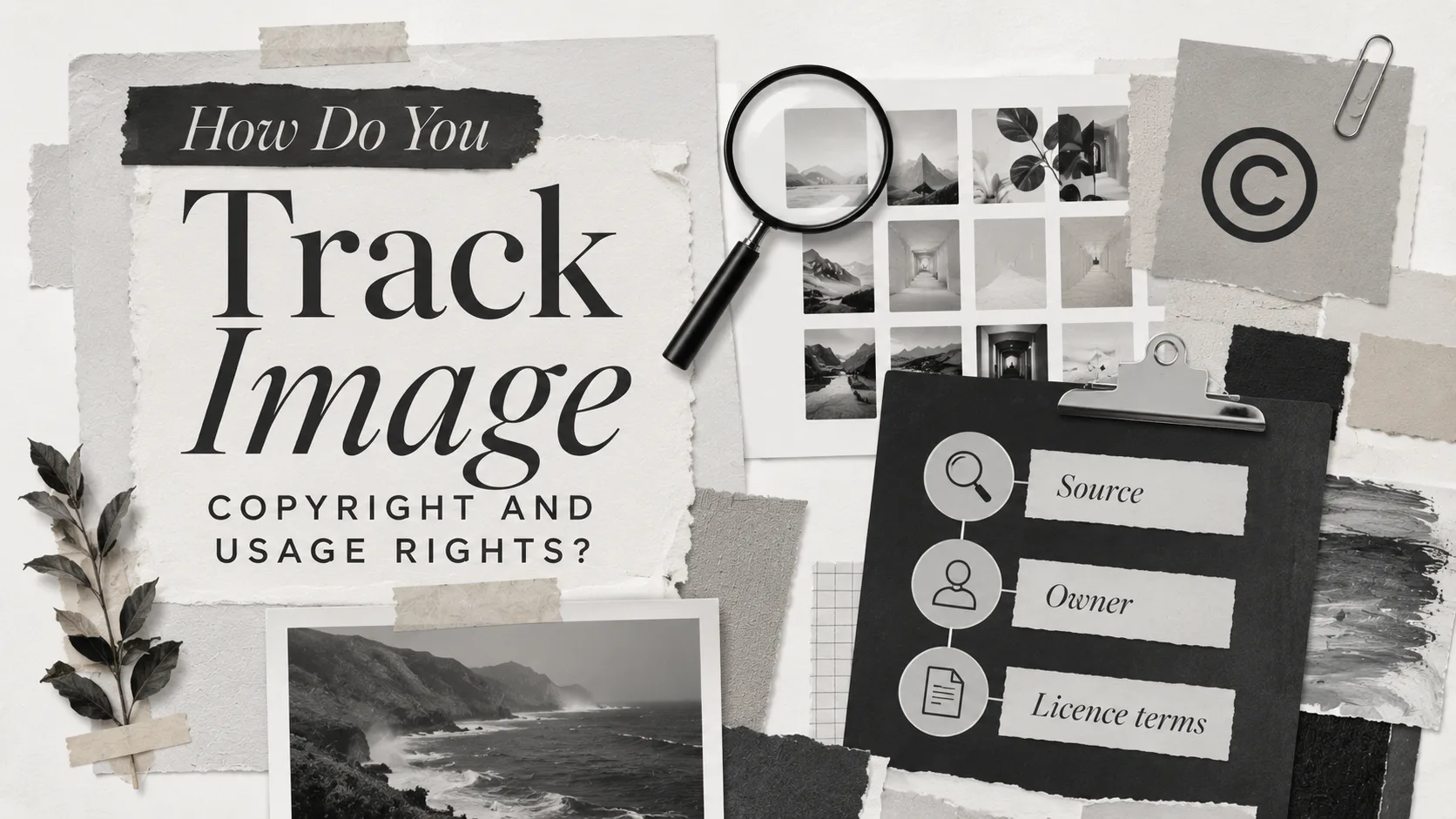
How Do You Track Image Copyright and Usage Rights?
Every image in your library needs three things on the record. Where it came from, who owns it, and what you’re allowed to do with it.
The questions to answer for each file:
- Source. Was this taken in-house, bought from a stock library, commissioned from a photographer, supplied by the client, or pulled from a free site? Note the platform and the date acquired.
- Owner. Who holds the copyright? Just because you paid for a stock licence does not mean you own the image. You own the right to use it under the licence terms.
- Licence terms. What can you do with it, where, and for how long? Some licences cap impressions. Some forbid use in advertising. Some require attribution. Some expire.
Record this information in the file’s metadata or a sidecar spreadsheet that lives next to the folder. If your asset platform supports custom fields, use them. If not, a simple rights spreadsheet in each project folder will do the job.
Watch out for placeholder images. These are the stock-looking shots designers use during mockups and prototypes that nobody has licensed yet. Label them clearly (a “placeholder” prefix on the filename works) and remove them before anything goes live. Placeholder images sneaking into a published site is one of the more common causes of nasty copyright letters.
When you’re shortlisting stock images during a project, save only the low-res preview versions that the library lets you download for free. Hold off on licensing the high-res file until you’ve confirmed the image is going in the final work. Licensing high-res images you might use, rather than ones you definitely will, is one of the fastest ways to blow a stock image budget.
Where Should You Store the Library?
The right answer depends on the size of your collection, who needs access, and what you can afford. For most businesses, cloud storage is the default. It handles backup, sharing, and remote access in one move.
Google Drive or Microsoft OneDrive suits businesses already in the Google Workspace or Microsoft 365 ecosystem. Both support folder structures, file-level sharing, and basic metadata. Storage is cheap, and access controls are straightforward.
Dropbox remains popular with creative teams for its sync reliability and clear sharing model. Worth the cost if your team works across multiple devices and locations.
Dedicated Digital Asset Management (DAM) platforms like Bynder, Brandfolder and Canto are built specifically for this job. They offer proper metadata, version control, rights tracking and approval workflows. Worth considering if your library is large, your team is bigger than 10 people, or you have brand assets that get used across many channels.
Local storage with cloud backup still works for small teams who do not need shared access. Just make sure backup is automatic, not something you remember to do on Fridays.
Whatever you pick, the rule is the same. One source of truth. Not three.
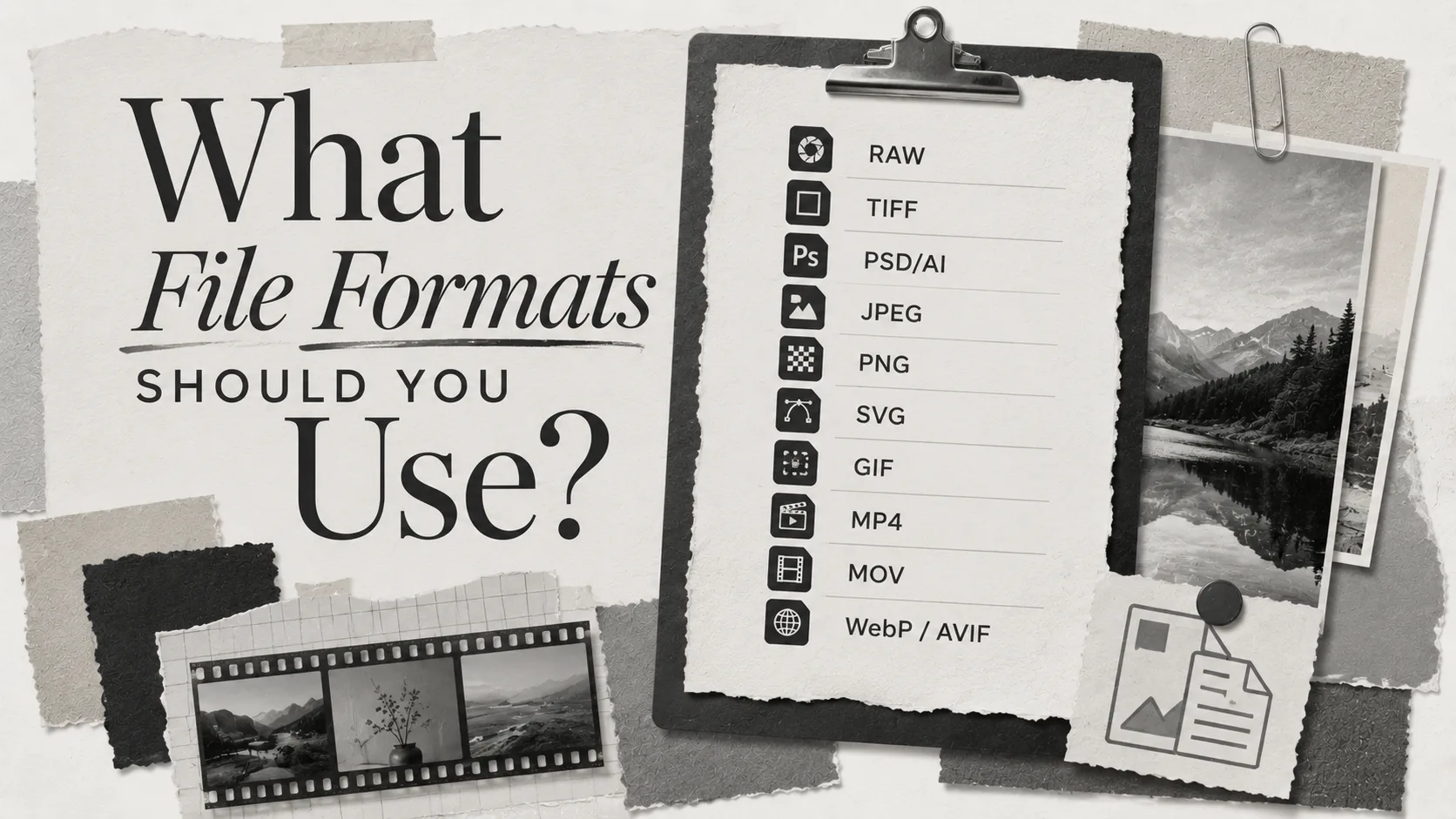
What File Formats Should You Use?
Store everything in the format that matches its job. The wrong format either wastes storage or loses quality at the wrong moment.
| Format | Best for | Notes |
|---|---|---|
| RAW | Camera originals, archival | Large files, maximum editing flexibility |
| TIFF | Print, archival masters | Lossless, large file sizes |
| PSD / AI | Working design files | Keep alongside exported assets |
| JPEG | Web photos, general use | Compressed, slight quality loss |
| PNG | Logos, icons, transparency | Lossless, supports transparent backgrounds |
| SVG | Logos, icons at any size | Vector, scales without quality loss |
| GIF | Simple animations | Limited colour palette, mostly superseded by short video |
| MP4 | Web video | Widely supported, good compression |
| MOV | Video archival masters | Higher quality, larger files |
| WebP / AVIF | Modern web images | Better compression than JPEG, broad browser support |
The general rule for images is to keep the highest-quality master file in the archive (RAW, TIFF or the original PSD) and export delivery copies in the format and size the channel needs. Web pages get JPEG, WebP or AVIF. Logos go on as SVG or PNG. Print gets TIFF or high-resolution PDF.
For video, MP4 with H.264 or H.265 encoding is the safe web default. Keep the original camera files or MOV masters in the archive if you have them.
How Do You Manage Versions?
The day you stop being able to tell image-final.jpg from image-FINAL-2.jpg from image-final-USE-THIS.jpg is the day your library is broken.
Use clear suffixes. Add _v1, _v2, _v3 for working drafts. Use _final for the version signed off. Use _web and _print for delivery-ready exports at different specs. Stick to one system across the whole library. If you have version control in your storage platform (Google Drive, Dropbox and most DAMs do), use it instead of duplicating files.
When something gets superseded, move the old version to an archive subfolder rather than deleting it. You will want it back at least once.
Keeping the Library Usable Over Time
A media library does not stay tidy on its own. Two habits keep it working.
File as you go. Every project, every shoot, every supplier delivery, into the library that day, named correctly, tagged, rights logged. The longer files sit in a downloads folder or an email attachment, the less likely they are to make it home.
Audit quarterly. Once every three months, spend an hour scanning the library for files in the wrong folder, missing rights data, expired licences and broken naming. An hour every quarter beats a full archaeological dig once a year. Treat it the way you would website maintenance. Small, regular check-ins prevent expensive cleanups later.
Assign someone to own it. In smaller businesses, that might be an office manager or a marketing lead. In bigger teams, it should be explicit in someone’s role. Without a name attached, the library decays.
Spend a day or two to set it up properly, build the habit of filing as you go, and you will spend the next decade thanking yourself.
A media library is one piece of a bigger picture. How it connects to your website, your team and the content you publish is the next question.
Talk to us about your website.