Here’s what every site owner needs from day one. How to log in and log out properly, what the dashboard is actually showing you, and how to get back in when something goes wrong. It assumes you have an account on a WordPress site already. If you don’t, your site administrator or developer sets that up for you. From there, everything below is yours to use.
How to Log In to WordPress
To log in to WordPress, open your browser and go to your site’s admin URL. The standard format is: https://yourwebsite.com.au/wp-admin.
That takes you to the login page. Enter your username or email, then your password. Click Log In.
A few things to know about that screen.
The password field hides what you type. Most browsers offer to fill it in for you if you have saved it before, which is the easiest way to avoid typos.
The Remember Me checkbox keeps you logged in for two weeks. Tick it on devices you trust, but leave it off on shared or public computers.
The Lost your password? link sends a reset email to the address on your account. If the email doesn’t arrive, check spam, and check that your site administrator has your current email on file. We have a separate guide on how to change your WordPress password if you want the full walkthrough.
If your site uses two-factor authentication, you’ll get a second prompt after your password. Usually, a six-digit code from an authenticator app or a code sent to your phone. Enter it, and you’re in.
Where to Find Your WordPress Admin URL
Most WordPress sites use /wp-admin or /wp-login.php at the end of the domain. Both work. The first redirects to the second.
Some sites change this for security. If /wp-admin returns a 404 or “page not found” error, ask your developer for the correct admin URL. Don’t keep guessing. Repeated failed attempts can trigger a lockout from your site’s security plugin.
Bookmark the login URL once you have it. You’ll use it constantly.

A Quick Tour of the WordPress Dashboard
Once you log in, you land on the Dashboard. The Dashboard is the WordPress home base. It shows recent activity, quick draft tools, news from WordPress.org, and any custom widgets your developer has added.
Down the left side is the admin menu. The items vary depending on your theme, plugins and user role, but most sites have these:
| Menu item | What it does |
|---|---|
| Dashboard | Home view, activity summary, quick stats |
| Posts | Blog articles and news items |
| Media | Images, videos, PDFs and other uploads |
| Pages | Static pages like About, Services, Contact |
| Comments | Reader comments awaiting moderation |
| Appearance | Theme, menus, widgets, customiser |
| Plugins | Installed plugins and their settings |
| Users | Everyone with an account on the site |
| Tools | Import, export, site health |
| Settings | Site title, URL, reading and writing options |
Across the top is the admin toolbar. The black bar that stays visible while you’re logged in. It gives you fast access to the front of your site, new content shortcuts, and your profile menu.
You don’t need to know every screen on day one. Most site owners spend 90% of their time in Posts, Pages and Media. Everything else is a tap away when you need it.
Your site might also have custom post types. Things like Case Studies, Products, Team Members or Locations. They appear as their own menu items below Comments. Treat them the same way you treat Posts.
How to Log Out of WordPress
Logging out is easy and worth doing properly.
Hover over your name in the top right of any admin page. A drop-down appears with a Log Out link. Click it. You’re returned to the login screen.
That logs you out of the current browser only. If you’ve also logged in on your phone, your laptop, or a colleague’s machine, those sessions stay active.
To end every session everywhere, go to Users → Profile, scroll to the Sessions section, and click Log Out Everywhere Else. Use this if you suspect someone else has access to your account, or if you’ve left yourself logged in on a device you no longer have.
Always log out on shared computers such as public libraries, hotel business centres, and client offices. Don’t rely on closing the tab. Close the tab, and the cookie often stays put.
Logging In on Multiple Devices
WordPress lets you stay logged in on as many devices as you like, such as phone, tablet, work laptop, or home computer. Each one keeps its own session.
That’s convenient, and it’s a security risk if you’re not paying attention.
Three habits worth building. Use Remember Me only on trusted devices. Review your active sessions occasionally under Users → Profile. And turn on two-factor authentication so a stolen password doesn’t equal a stolen site.
If you’re using WordPress as part of a team, every person gets their own account. Don’t share logins. Shared logins make it impossible to know who changed what, and they’re the first thing security auditors flag.
Why Does WordPress Sometimes Log Me Out?
WordPress logs you out automatically for a few reasons, and most of them are working as intended.
Sessions expire after 48 hours by default, or two weeks if you ticked Remember Me. After that, you’re back to the login screen.
Your site’s URL can change. Switching from http to https, or moving from yoursite.com.au to www.yoursite.com.au, invalidates existing sessions. You’ll need to log in again.
Security plugins can also force logouts. Wordfence, iThemes Security and similar tools log out sessions after suspicious activity, failed login attempts, or password changes elsewhere on the account.
If you’re getting logged out constantly, every few minutes, something’s wrong. Could be a plugin conflict, a caching issue, or a misconfigured cookie domain. Don’t ignore it. Send your developer the details, and they can usually fix it quickly.
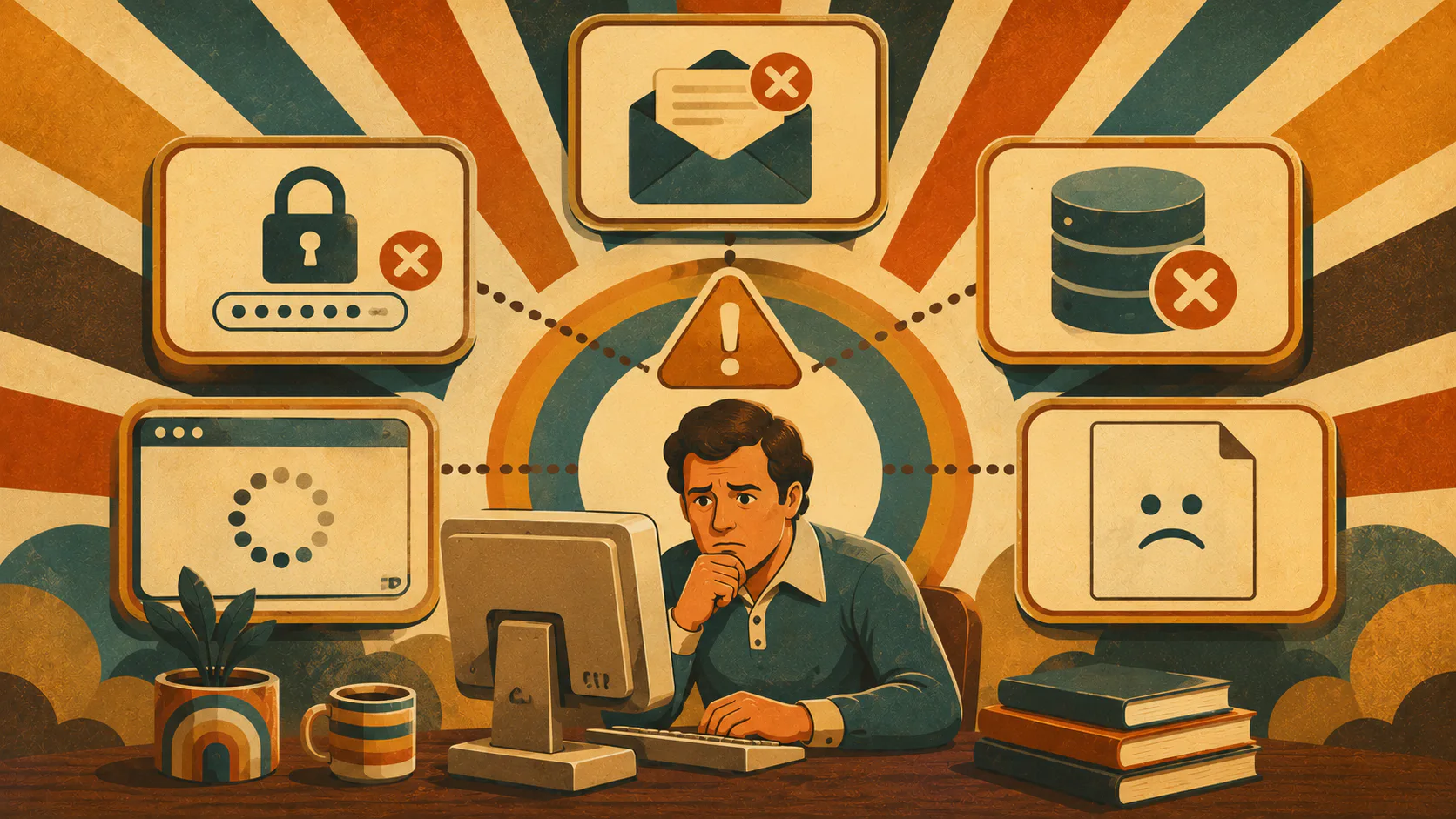
The 5 Most Common WordPress Login Problems
Login issues are the most common reason people call their web developer. Most of them have simple fixes.
1. “Lost your password?” Email Never Arrives
The reset link is sent to the email address on your account. If it doesn’t arrive within a minute or two:
- Check spam, junk and promotions folders
- Confirm your site has a working email sender (many shared hosts block PHP mail by default)
- Ask your administrator to confirm the email address on file
- If all else fails, your administrator can reset your password directly from the Users screen
If your site has no working email sender at all, password resets won’t work for anyone. That’s worth fixing properly with an SMTP plugin. Otherwise, you’re one forgotten password away from being locked out.
2. “Too Many Failed Login Attempts”
Most WordPress sites block your IP address after a handful of wrong password attempts. That’s a good thing as it stops automated attacks.
The fix depends on your security plugin. Some lock you out for 20 minutes and then let you try again. Others require an administrator to unblock your IP. If you’re sure of your password and still getting blocked, ask your developer to whitelist you.
3. The Login Page Keeps Reloading
You enter your password, the page refreshes, and you’re back where you started. No error, no dashboard. This is almost always a cookie problem. Try these in order:
- Clear your browser’s cookies for the site
- Try a different browser
- Try an incognito or private window
- Disable browser extensions that block cookies or scripts
If none of that works, the site’s WordPress address and Site address in Settings → General may not match. That’s a developer fix.
4. “Error Establishing a Database Connection”
This isn’t a login problem in the usual sense. The site can’t reach its database, so nothing loads, including the admin. There’s nothing you can do from your end.
Contact your hosting provider or your developer. If your site has support and maintenance covered, this is exactly the call to make.
5. The White Screen of Death
You log in, and you get a blank white page. Sometimes with a vague error, sometimes with nothing.
Usually, a plugin or theme conflict occurs after an update. The fastest fix is to ask your developer to roll back the most recent change. If you have FTP access and know what you’re doing, you can rename the active plugin’s folder via FTP to disable it. If you don’t, leave it to someone who does. A bad fix on a live site is worse than no fix at all.
Keeping Your WordPress Login Secure
You don’t need to be a security expert. Five habits cover most of what matters.
Use a strong, unique password. Long beats clever. A passphrase like correct-horse-battery-staple-42 is stronger and easier to remember than P@ssw0rd!. Use a password manager and don’t reuse passwords across sites.
Turn on two-factor authentication. WordPress supports it via plugins like Wordfence Login Security and Two Factor. A stolen password without the second factor is useless.
Don’t use “admin” as a username. It’s the first thing every brute-force attack tries. If you inherited an admin account called admin, create a new admin-level account with a different username and delete or demote the original.
Limit who has administrator access. Most team members don’t need it. Editor, Author and Contributor roles exist for a reason. Use them. The fewer admins, the smaller the target.
Keep WordPress, themes and plugins updated. Outdated software is the most common way sites get hacked. If you’re not confident running updates yourself, this is what WordPress support and maintenance covers.
For more on what happens when a WordPress site is compromised, our article on what happens if my website gets hacked walks through the cleanup process and the cost of skipping the basics.
When to Call Your Web Developer
Some things you can sort yourself, while some things you shouldn’t try.
Sort it yourself if you have forgotten your passwords, want to log out everywhere. Also, you can bookmark the right URL, clear cookies, basic navigation around the dashboard.
If you encounter repeated lockouts you can’t explain, the white screen of death, database errors, login pages that loop, accounts you don’t recognise, anything that smells like a breach call your developer.
The middle ground covers things like broken plugin updates, weird admin behaviour and performance problems. Whether you tackle it or call someone depends on your comfort level and what’s at stake. If your site is your business, err on the side of asking. The cost of a fixed problem is always lower than the cost of a worse one.
Talk to us about your WordPress site.