WordPress user roles control who can do what on your website. Get them wrong, and you’ve either given the wrong people too much access or blocked the right people from doing their jobs. Most teams err on the side of too much access and never review it.
What Are WordPress User Roles?
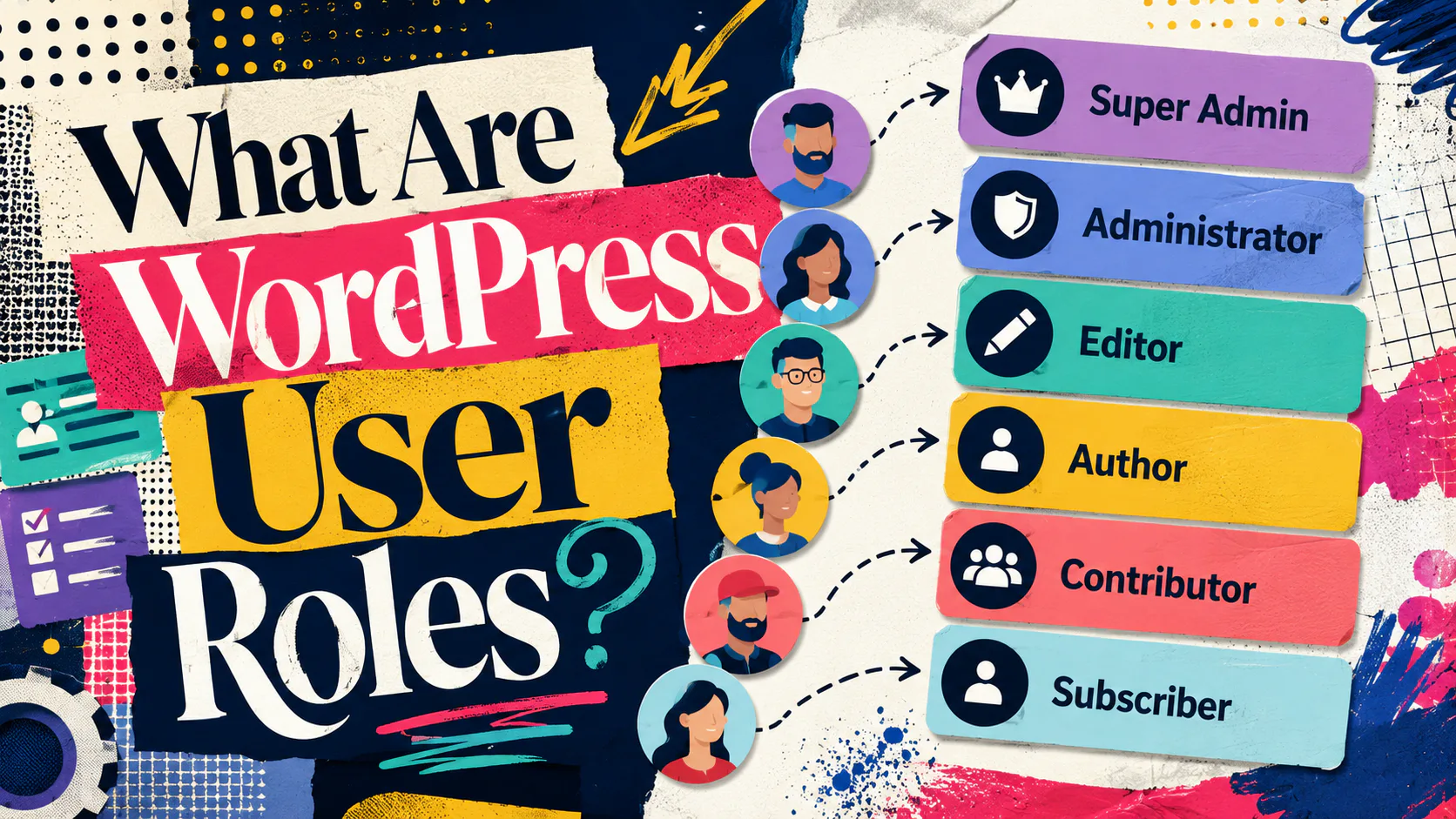
WordPress user roles are predefined permission sets that determine what each user can do inside your WordPress site. It works by attaching a role to every user account, and each role carries a fixed list of capabilities. An Editor can publish anyone’s content. A Subscriber can only manage their own profile. The system stops people from doing things they shouldn’t.
WordPress ships with six default roles. They cover almost every real-world scenario a business site will need.
Super Admin has full control across a WordPress Multisite network. You only see this role if you’re running multiple sites from one installation. For a standard single-site setup, ignore it.
Administrator has complete access to a single site. Settings, plugins, themes, user accounts, the lot. This is the role most people overuse.
Editor can publish and manage every post and page on the site, including content written by other users. Editors cannot change site settings, install plugins, or manage users.
Author can write, publish and manage their own posts. They cannot touch anyone else’s content.
Contributor can write and edit their own posts but cannot publish them. An Editor or Administrator has to approve and publish the work.
Subscriber can only manage their own profile and read content. This is the lowest level of access and the safest default for unknown users.
To change anyone’s role, you need to be logged in as an Administrator or Super Admin. No other role can manage users.
Why WordPress User Roles Matter More Than Most Teams Realise
Most WordPress sites have too many administrators. It’s the single biggest user-management mistake we see, and it’s almost always avoidable.
Here’s the problem. Every Administrator account is a complete copy of the keys to your site. If one gets compromised, an attacker can install malicious plugins, redirect traffic, harvest customer data, or delete the whole site. Likewise, if a staff member leaves and their account stays active, you’ve got a former employee with full access. If someone accidentally clicks the wrong setting, they can take the site offline.
A well-structured role system fixes three things at once.
First, it limits the blast radius of a compromised account. If a Contributor account gets hacked, the attacker can write draft posts. That’s it. If an Administrator account gets hacked, you’re looking at a full incident response.
Second, it clarifies who is responsible for what. Editors own published content. Authors own their own writing. Administrators own the platform. When everyone has admin access, no one knows where their job ends.
Finally, it prevents accidental damage. Most site outages caused by internal users are not malicious. Someone updates a plugin during peak traffic, changes a permalink structure, or deactivates a theme to “see what happens.” Role restrictions stop those mistakes before they start.
The principle is simple. Give every user the minimum access they need to do their job, and nothing more.
How to Change a WordPress User Role
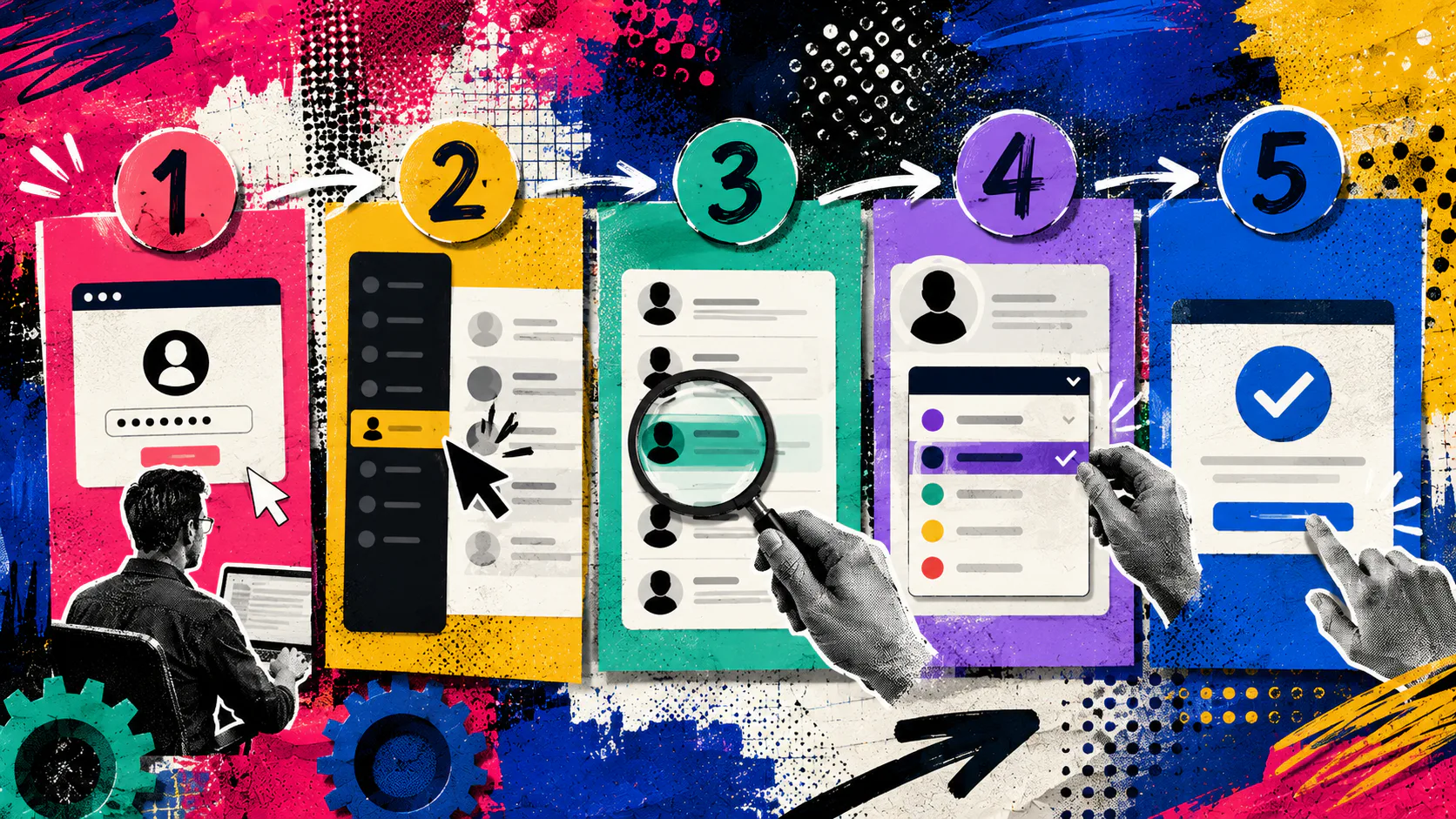
Changing a user’s role is straightforward once you know where to look. Here are the steps.
Step 1. Log in as an Administrator
Open your WordPress login page (usually yoursite.com/wp-admin) and log in with an account that has Administrator or Super Admin permissions. If you’re not sure whether your account has the right level, hover over your name in the top right of the dashboard. Your role is listed in your profile.
Step 2. Open the Users Screen
In the left-hand admin menu, click Users, or hover over Users and select All Users from the submenu. You’ll see a list of every account registered on your site, along with their current role.
Step 3. Find the User You Want to Update
Scroll through the list, or use the search box in the top right to find the account. Click the user’s name to open their profile.
Step 4. Change the Role
Scroll down to the Role dropdown in the user’s profile. Select the new role from the list. The dropdown only shows the six default roles unless you’ve installed a plugin that adds custom roles.
Step 5. Save the Change
Scroll to the bottom and click Update User. The new role takes effect immediately. The user does not need to log out and back in for the change to apply, although a fresh login is sometimes cleaner if they’re mid-task.
Changing Multiple Users at Once
If you need to change several users at once, the Users screen has a bulk action. Tick the checkbox next to each user, choose Change role to… from the Bulk Actions dropdown above the list, pick the new role, and click Change. It saves time when you’re restructuring access for a whole team.
How to Decide Which Role Each Person Needs
Most teams over-assign roles by default. Here’s a simple way to work out the right level for each person.
Start by listing what the person actually does on the site. Not what they might do one day, but what they do this week. Then match those tasks to the smallest role that covers them.
Someone who only reads members-only content is a Subscriber. If they write blog posts that must be reviewed by a manager before going live, they’re a Contributor. Those who write and publish their own work without editing others’ content are Authors. And if they edit others’ writing, manage the editorial calendar, or publish site-wide content, they’re Editors.
Only give someone Administrator if they need to install plugins, change site settings, manage other users, or update the theme. That’s it. A marketing manager who publishes blog posts is an Editor, not an Administrator. A freelance writer is a Contributor or Author, not an Administrator.
When in doubt, start lower. It’s easy to bump someone up if they hit a wall. It’s hard to recover from a compromised admin account.
When the Default Roles Aren’t Enough
Sometimes the six default roles don’t quite fit. You might want a user who can edit pages but not posts, or who can manage WooCommerce orders but not site settings. That’s where role-management plugins come in.
Two trusted options are User Role Editor and Members. Both let you create custom roles, edit the permissions of existing roles, and assign granular capabilities (like “can edit published pages but not delete them”). Both are free with paid upgrades.
A few cautions before you install either one.
Custom roles are powerful and easy to misconfigure. Granting the wrong capability can quietly give a user more access than you intended. Test every custom role on a staging site before applying it to production.
The more custom roles you create, the harder your site is to maintain. If your role list grows past ten or twelve entries, the system has become more complex than it needs to be. Simplify.
If you’re not sure whether you need a custom role or just a different default role, you probably don’t need a custom one. Most teams are fine with the built-in six.
How Often Should You Review User Roles?
Once a quarter, at minimum. Sooner if your team has changed.
A quarterly review takes about ten minutes for most sites and catches the things that quietly create risk. Former staff who still have active accounts. Freelancers who finished a project six months ago. Contributors who were promoted to Editor and never had their old accounts cleaned up.
Three things to check on every review.
Look at the list of Administrators. Ask whether each one still needs that level of access. If a person could do their job with Editor permissions instead, downgrade them.
Look for inactive accounts. Anyone who hasn’t logged in for ninety days is a candidate for deletion or demotion to Subscriber. WordPress does not warn you about dormant accounts, so this has to be a manual check.
Look for accounts you don’t recognise. If you find one, change the password immediately, investigate how it was created, and consider a full security audit. Unknown admin accounts are a classic sign of a compromised site.
Reviewing user roles is part of basic website management, not an optional extra. Build it into your routine the same way you’d schedule plugin updates or backups.
Common Mistakes With WordPress User Roles
A few patterns come up again and again. Avoid these, and you’ll dodge most of the trouble.
Making everyone an Administrator. The most common mistake by a mile. If you do nothing else from this guide, downgrade everyone who doesn’t truly need admin access.
Sharing one Administrator login between multiple people. This breaks accountability. You can’t tell who made which change, and you can’t revoke access for one person without locking everyone else out. Give each person their own account.
Never removing former staff. When someone leaves, their account should be deleted or demoted to Subscriber the same day. Not next month. Not when you remember.
Ignoring plugin-added roles. Some plugins create their own roles when you install them (WooCommerce adds Shop Manager, for example). Review these too. They often have more access than you’d expect.
Your Next Steps
Audit your Administrator list this week. If more than two or three people have admin access on a small site, or more than a handful on a larger one, downgrade the rest. Use Editor for content managers, and Author or Contributor for writers.
Then, put a recurring calendar reminder to review user roles every quarter. Ten minutes, four times a year. That’s all it takes to stop most of the security problems WordPress sites run into.
If you prefer to have someone else take care of your WordPress site, Mettro offers support and maintenance services to keep it running smoothly.
Talk to us about your website.