Links are the connective tissue of your website. They guide readers to what they need next, push relevant pages up in search results, and keep people on your site longer. If not done correctly, they break trust and drop your rankings.
No prior WordPress experience needed. If you can copy and paste a URL, you can follow this.
What Counts as a Link in WordPress?
A link is any clickable element that takes a reader somewhere else. It works by wrapping text, an image or a button in an HTML anchor tag (<a href="...">) so a browser knows where to send the user when they click it.
In WordPress, you almost never see the HTML. The editor wraps everything for you. What you need to know is how to attach a URL to the right piece of content, decide whether it opens in a new tab, and edit or remove it later without breaking anything else.
There are three places links usually live in a WordPress page or post. Inside paragraph text, on buttons, and on images. The steps for paragraph text are the most common, so that’s where each section below focuses. Buttons and images use a similar pattern, with a URL field tucked into the block’s settings panel.
How to Add a Link in the WordPress Block Editor
The Block Editor uses blocks for every piece of content. To add a link inside a paragraph, you don’t create a new block. You work inside the paragraph block you already have.
- Open the page or post and click into the paragraph where you want the link.
- Highlight the text that will become the link. Pick the words a reader would naturally click. “Read our guide to website briefs” works better than “click here”.
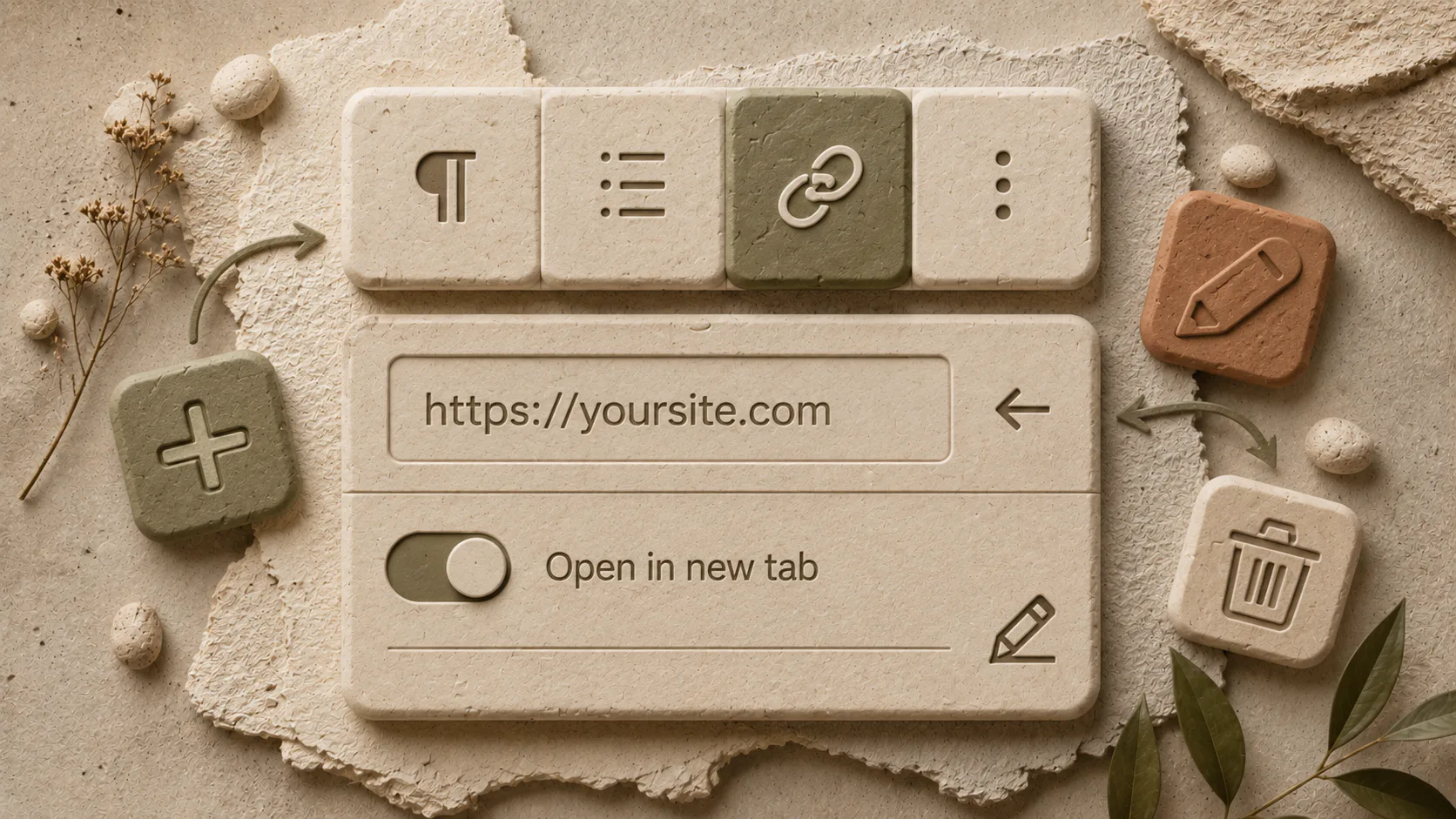
- Click the link icon in the block toolbar that appears above the highlighted text. The icon looks like a chain link. You can also press
Ctrl+Kon Windows orCmd+Kon Mac. - Paste your URL into the field that appears. If you’re linking to another page on your site, start typing the page name, and WordPress will suggest matches from your existing content.
- Press Enter to apply the link.
The text you highlighted is now a working link. You’ll see it underlined in the editor.
Linking to Existing Content on Your Site
Internal links matter more than most people realise. They tell search engines which pages on your site relate to each other and pass authority between them. The Block Editor makes this easy.
When the link field is open, type a word or two from the page or post you want to link to. WordPress searches your published content and shows matches in a dropdown. Click the right result, and the link is set. No copying URLs, no risk of typos.
Opening Links in a New Tab
You’ll often want external links to open in a new tab so readers don’t lose your site when they click away. Here’s how.
- Click on the existing link in your content.
- Click the pencil icon to edit the link.
- Open the Advanced section by clicking the small arrow or toggle.
- Tick the box labelled Open in new tab.
- Click Save.
A useful rule. External links open in a new tab. Internal links don’t. Forcing your own pages into new tabs clutters the reader’s browser and makes navigation feel broken.
How to Edit a Link in the Block Editor
Editing a link is faster than removing and recreating it.
- Click anywhere on the existing link inside your paragraph.
- A small toolbar appears showing the current URL.
- Click the pencil icon to open the edit view.
- Replace the URL with a new one, or search for a different internal page.
- Click Save or press Enter.
If you only need to change the visible text of the link, just edit the words directly in the paragraph. The link stays attached to whatever text you leave behind, as long as you don’t delete every character of the original highlighted selection.
How to Remove a Link in the Block Editor
Removing a link doesn’t delete the text. It just strips out the URL so the words go back to being normal paragraph text.
- Click anywhere on the link.
- Click the link icon in the block toolbar. The one with the chain link broken across it, or the same icon you used to create the link, depending on your WordPress version.
- The URL is removed, and the text returns to normal.
If you want to delete the text entirely, just select it and press delete like any other text in your document.
How to Add a Link in the Classic Editor
Plenty of older WordPress sites still run on the Classic Editor, either by choice or because the site predates Gutenberg. The steps are slightly different, but the logic is the same.
- Open the page or post in the Classic Editor.
- Place your cursor where you want the link, or highlight the text you want to turn into a link.
- Click the link button in the editor toolbar. It looks like a chain link icon and sits roughly in the middle of the row of formatting buttons.
- A small inline field appears. Paste your URL.
- Press Enter.
If you’d like more control, click the gear icon instead. This opens a larger dialogue box with two fields. The top field is for the URL. The bottom field lets you set the display text separately, which is useful when you didn’t highlight text first.
Paste to Link in the Classic Editor
A small shortcut that saves time. Highlight existing text in your content, then paste a URL from your clipboard. The Classic Editor recognises what you’re doing and wraps the highlighted text in your pasted link automatically. No buttons needed.
Opening Links in a New Tab in the Classic Editor
- Click the gear icon when adding or editing a link.
- In the dialogue box, tick Open link in a new tab.
- Click Add Link or Update.
Linking to Existing Content in the Classic Editor
The expanded link dialogue includes a search field beneath the URL and display text inputs. Type a term to find pages or posts already published on your site. Select the right one, and both the URL and display text fill in automatically.
How to Edit a Link in the Classic Editor
- Click anywhere on the link in your content.
- A small toolbar appears just above the link.
- Click the pencil icon to edit. Use the gear icon if you want the full dialogue with the open-in-new-tab option.
- Update the URL or display text.
- Press Enter or click Update.
How to Remove a Link in the Classic Editor
- Click anywhere on the link.
- In the small toolbar that appears, click the unlink button. It looks like a broken chain.
- The text stays. The link is gone.
How to Add a Link in Elementor
Elementor is a page builder that runs on top of WordPress. It uses its own editing panel rather than the standard WordPress one. The link controls are mostly in the left-hand editor panel, not in the canvas where your content displays.
- Click the text element you want to add a link to. This opens the editor panel on the left.
- Highlight the text inside the panel where the link should go.
- Click the link button in the formatting toolbar.
- Paste the URL in the field that appears, or type to search for an existing page on your site.
- Press Enter to apply the link.
The Gear Icon in Elementor
The gear icon next to the link field opens additional options.
- Paste the URL or search for a page.
- Tick Open link in a new tab if needed.
- Click Add Link.
You can also add a link directly in the canvas area by highlighting text and pasting a URL into the field that appears. The trade-off is that the gear icon options, including open-in-new-tab, aren’t available from the canvas. Use the editor panel when you need full control.
Why Does Where You Add Links Matter for SEO?
Internal links spread authority across your site. When you link from a strong page to a weaker one, the strong page passes some of its ranking power along. Search engines follow these links to discover and reindex content, so the structure of your internal linking shapes which pages get crawled most often.
A few patterns that work.
- Link from new posts to your most important service pages, using natural language in the link text.
- Link from older, ranking posts to newer related content to help the new content gain visibility.
- Avoid stacking the same link multiple times in one post. Once is enough for the search engine. More than that reads as spammy to humans.
For external links, the rule is simpler. Link to credible, named sources when you make a claim that needs backing up. Open them in a new tab. Don’t link to direct competitors unless you have a good reason.
Common Link Problems and How to Fix Them
A few issues come up repeatedly in WordPress, especially on older sites or sites with multiple editors making changes.
Broken links. A page you linked to has been deleted, or its URL has changed. Tools like Broken Link Checker or the SEO plugins Yoast and Rank Math can scan your site and flag broken links for you to fix.
Links pointing to the wrong protocol. If your site has moved to HTTPS but old links still use HTTP, browsers may show mixed-content warnings. A search-and-replace plugin or a database query can update them in bulk.
Links that don’t open in a new tab when they should. This is a content audit issue rather than a technical one. Run through your published content occasionally and check that external links behave the way you want.
Duplicate links in the same paragraph. A common mistake when copying and pasting between drafts. Keep one link per concept, and put it on the first natural mention.
Buttons, Images and Other Link Types
The steps above cover paragraph text. The same logic applies to other block types.
For buttons, click the button block, then look for the URL field in the block settings panel on the right. Paste or search, then save.
For images, click the image, open the block settings, and find the link option. You can link an image to a custom URL, the attachment page, or the full-size media file. Custom URL is what you want most of the time.
For navigation menus, you don’t add links inside the editor. You manage them under Appearance → Menus in the WordPress admin. Add a custom link, a page, a post, or a category to the menu structure there.
When to Get a Professional Involved
DIY link management is fine for everyday updates. There are points where it pays to bring in help.
Migrating a site or changing your domain. Bulk URL changes need careful redirects so you don’t lose search rankings or send readers to 404 pages. This is a technical job that benefits from someone who’s done it before.
Auditing internal linking across a large site. If your site has hundreds of pages, a manual link audit isn’t realistic. A professional audit identifies orphaned pages, weak internal linking, and opportunities to redistribute authority.
Recovering from a hack. Hacked WordPress sites often have spam links injected into content or hidden in the database. Cleaning them up properly takes more than running a security plugin.
If any of these sound familiar, our website support and maintenance service is built to handle them.
Links shape how readers move through your site and how search engines understand it. Get them right, and the rest of your content does more work. If your site’s link structure is messy, outdated or full of broken paths, that’s fixable.
Talk to us about your website.